
Connecting TallyPrime with the Windows Connector
The connector is a tiny Windows agent that bridges the browser app and your local Tally. It runs on the PC where Tally is installed, connects out over HTTPS, and posts approved vouchers into your company. No inbound ports, no static IP, no data leaving your machine.
1. Download & run
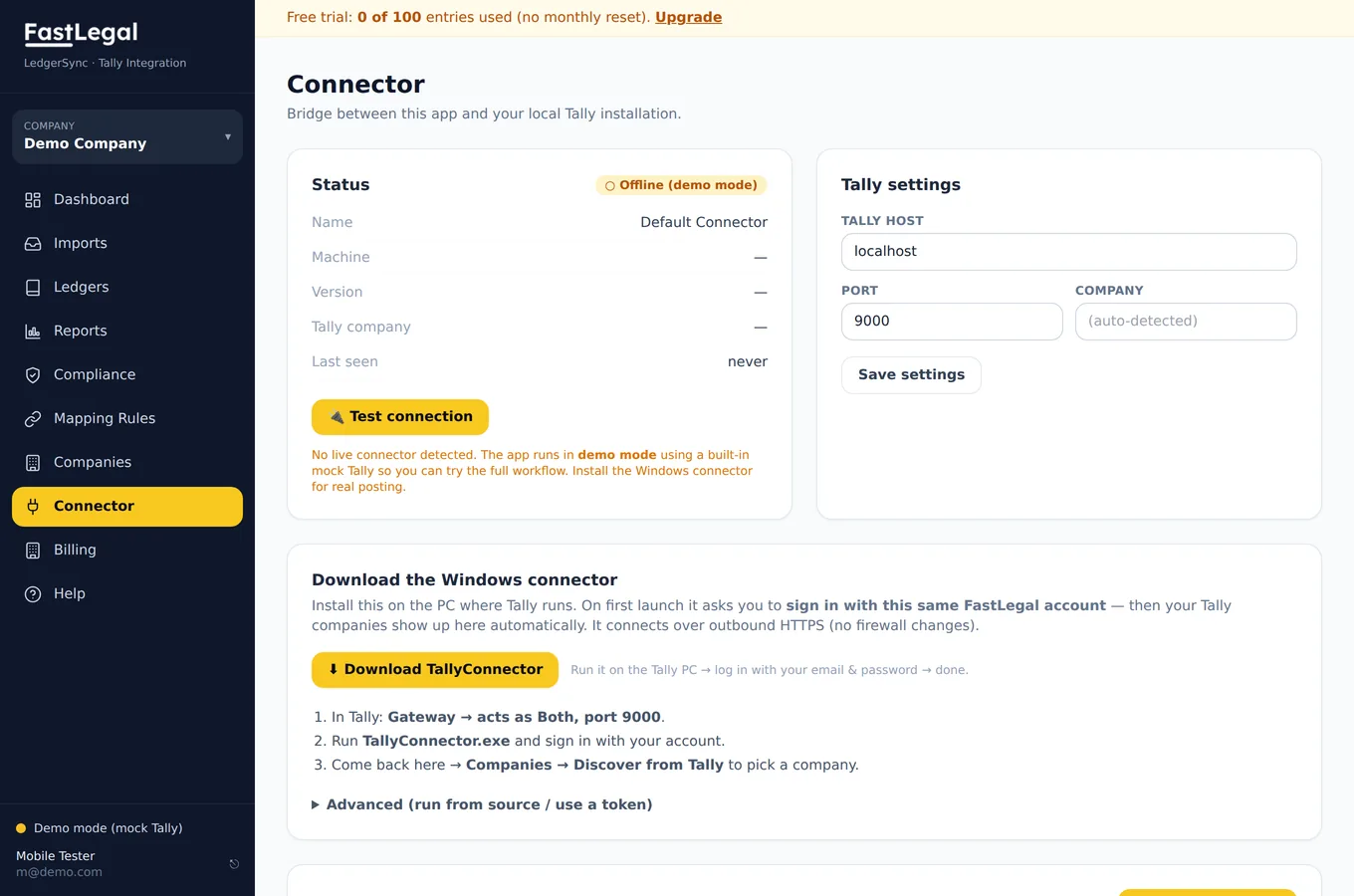
On the Tally PC, open Connector in the app and click Download TallyConnector. Run the downloaded TallyConnector.exe and sign in with the same FastLegal account you use in the browser.
2. Turn on connectivity in Tally
Tally needs to accept requests on its local port:
- Open your company in TallyPrime or Tally.ERP 9.
- Go to Gateway of Tally → F1: Help → Settings → Connectivity (TallyPrime) or press F12 → Advanced Configuration (Tally.ERP 9).
- Set “TallyPrime acts as” to Both, and confirm the port is 9000.
- Keep Tally running with the company open.
3. Verify it's online
Back in the app, the Connector status shows a green dot and “online” once the agent can reach Tally, along with the machine name, Tally version and company. Click Test connection to re-check at any time.
4. Pick your company
Open Companies → Discover from Tally to list the companies the connector can see, and add the one you want to post into. You can keep several companies (for example, one per client) in the same workspace.