
Help Centre › Importing a Bank Statement (PDF, Excel or CSV)
Importing a Bank Statement (PDF, Excel or CSV)
LedgerSync reads statements from any Indian bank — the net-banking PDF or the Excel/CSV export — and turns every line into a mapped Receipt/Payment voucher. This guide covers formats, the bank ledger and the reconciliation check.
Supported formats
- PDF — text-based net-banking statements, including multi-line narrations and column-positioned amounts.
- Excel (.xlsx/.xls) and CSV — the download from your bank's portal, no reformatting needed.
Scanned/image-only PDFs can't be read as text. If your PDF is a scan, download the Excel/CSV statement from net banking instead.
Uploading
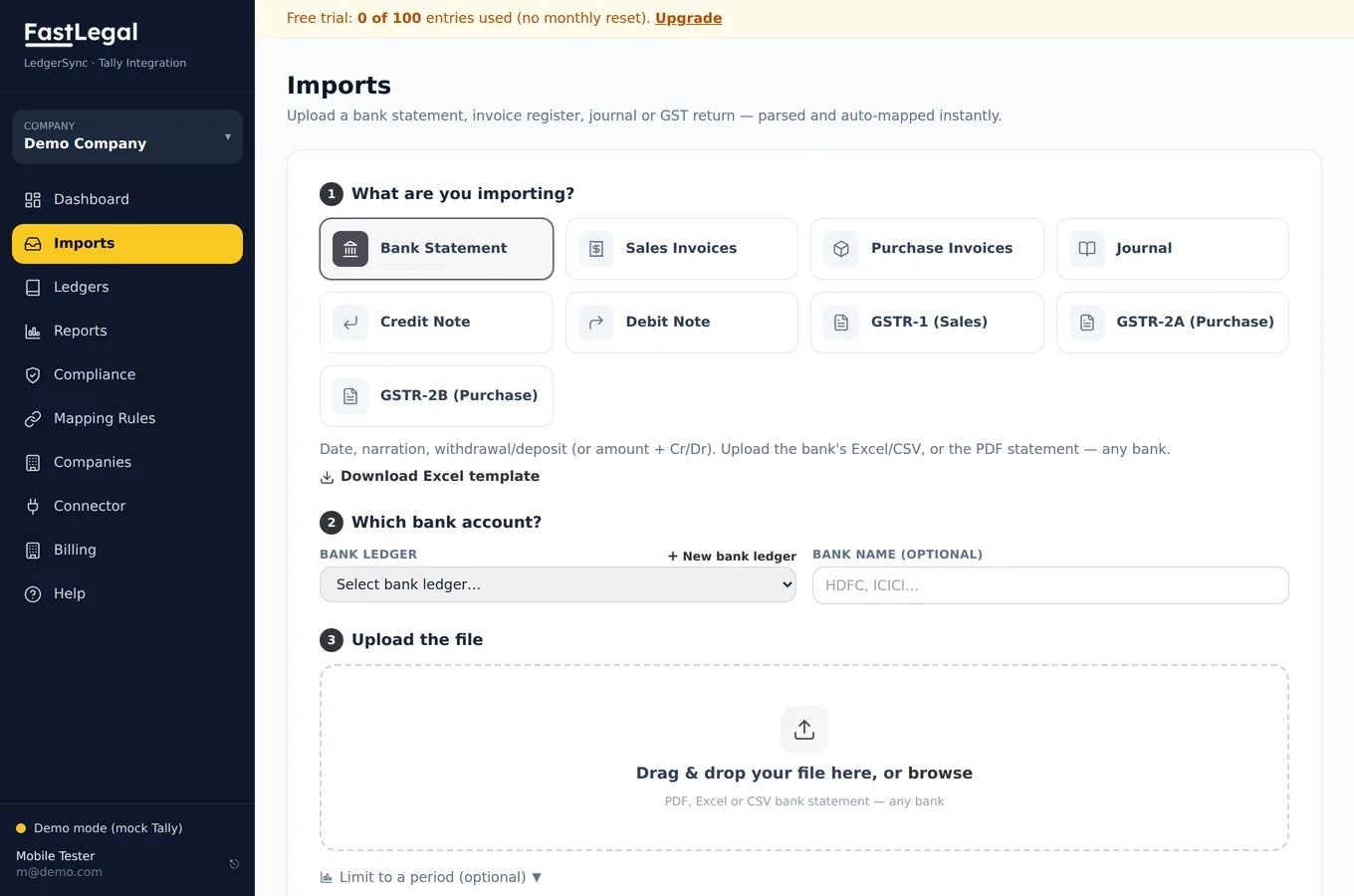
- Open Imports and choose Bank Statement.
- Select the bank ledger this statement belongs to (create one if it's new).
- Optionally set the statement period so only the range you want is imported.
- Drag in the file, or click to browse, then Upload & parse.
Balance reconciliation
When your statement carries a running balance, LedgerSync checks it: opening + deposits − withdrawals = closing. If every entry reconciles you'll see a green “balance verified” banner; if something is missing or misread, it's flagged before you post — so you never post an incomplete month.
Then map and post
Continue with mapping transactions to ledgers and posting to Tally.